Pantheon

Filezilla on Pantheon

FileZilla is an FTP client that allows you to upload and import files to and from the Pantheon server. This app allows you to copy several files at the same time. It is a cross-platform software that is available on Windows, Mac OS, and Linux.

This article will walk you through the steps of downloading and uploading your WordPress or Drupal site on Pantheon.

Download Filezilla

If you don’t already have FileZilla installed, grab the most recent update and install it on your computer.

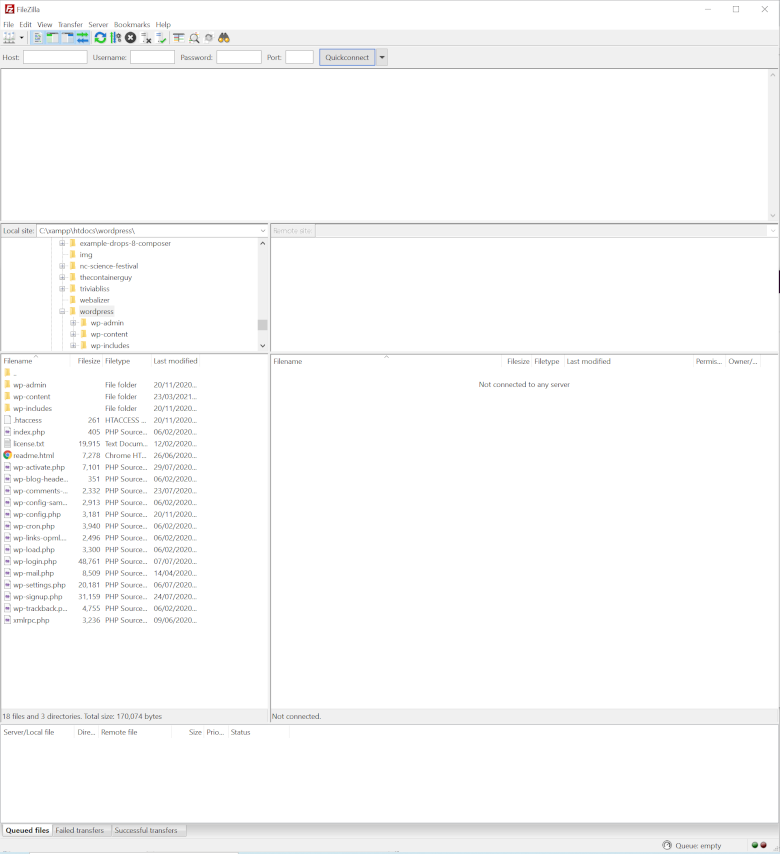
Start Filezilla

Start FileZilla by looking for the application on the start menu or search bar on Windows, on the applications folder on Mac OS, and search for Ubuntu. Keep in mind that Pantheon uses a non-standard port for SFTP, and the protocol must be SFTP rather than FTP.
Create a New Site

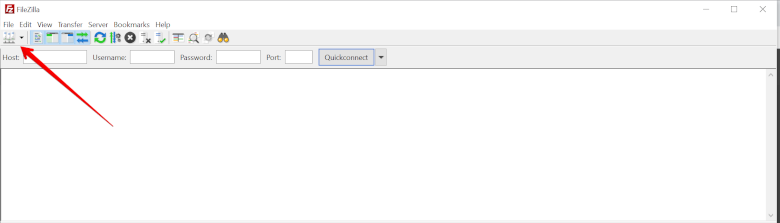
Click the Site Manager Icon, that would be the Icon under the File menu.
This would prompt the Site Manager window that would allow a new connection to be made on Filezilla.
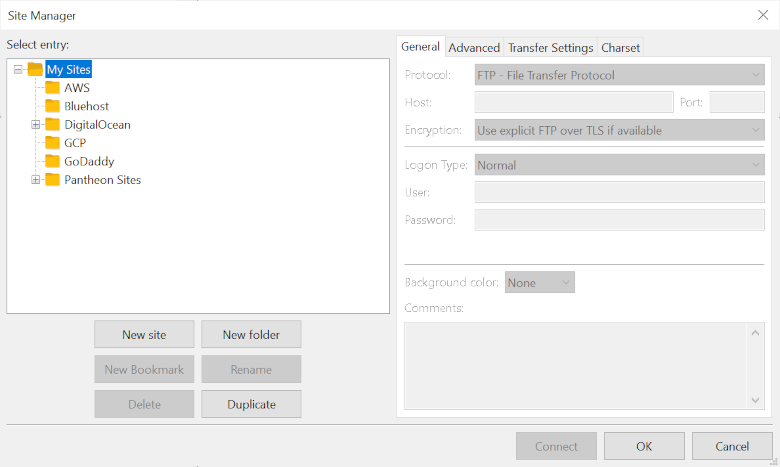
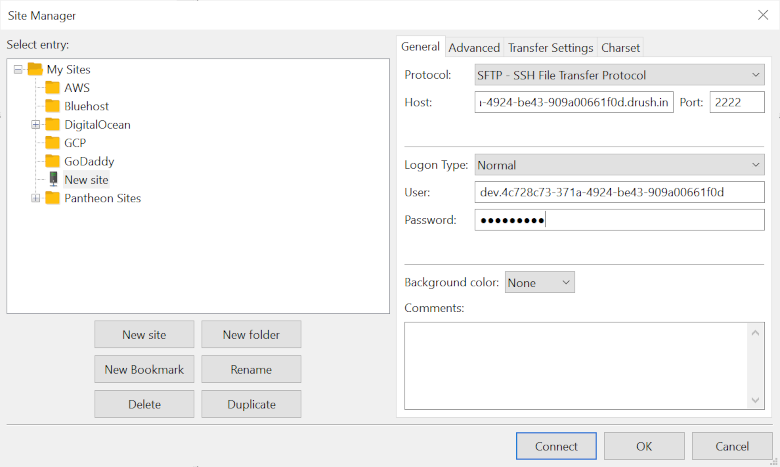
Click the New Site button and put details from the Site Dashboard Connection Info from Pantheon. Use the password that is being used on Pantheon User Dashboard. Make sure the Protocol is in SFTP and is using port 2222.
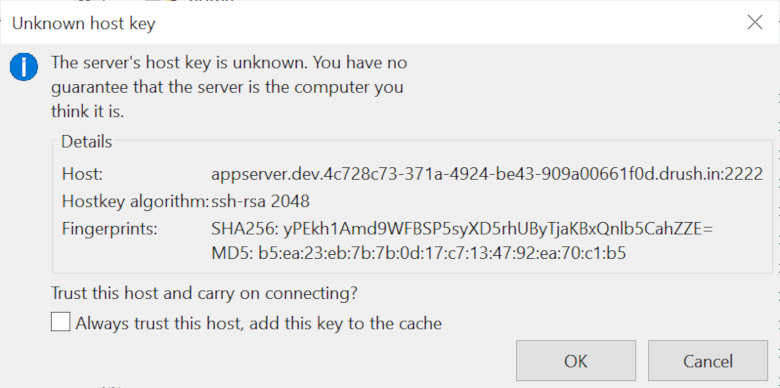
Select to accept the server’s host key for the current session so it is stored in the cache. This will allow you to connect to the server and manage your files for the current session.
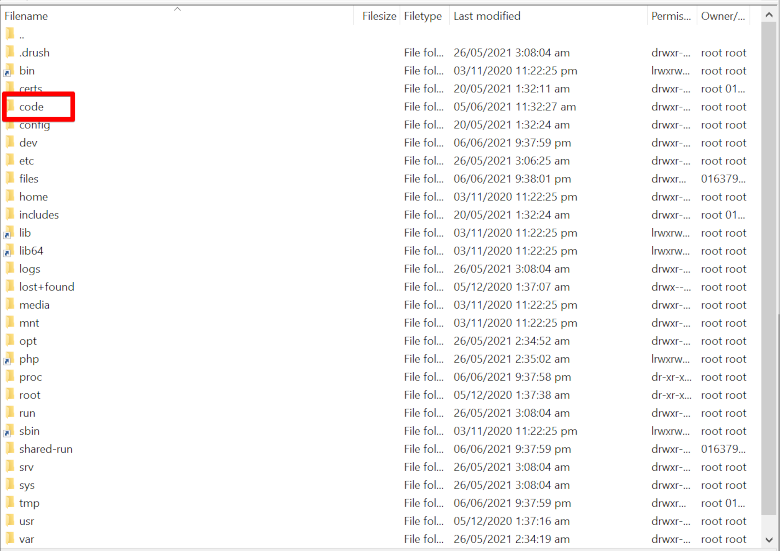
To get to the site’s root simply navigate to the code folder and you will be able to continue managing your files as normal.
Installing WP Rocket on Pantheon Platform

Some people do find a hard time installing WP Rocket on Pantheon since it creates files on a write-protect folder set by Pantheon Platform.

The solution was to create a symlink and point to the write permitted folder which is the wp-content/uploads folder.

Please take note that this step is not recommended to be used on any SFTP app but only on the SFTP command line. Since creating symlinks over SFTP have inconsistencies between clients. The process below was tested using MacBook Pro (Mojave), Ubuntu 18.04.4 LTS, and Windows 10 (Release 1909)

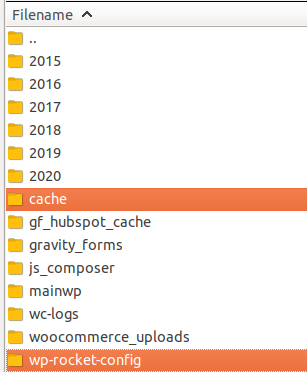
  • Create a folder cache and wp-rocket-config on wp-content/uploads folder on DEV first (later would be TEST and LIVE).
  • Remove the wp-content/cache folder. If there is a wp-content/wp-rocket-config folder, remove it also.
  • Create a symlink via the terminal command line.

Note: Be sure that you are in the wp-content folder.

$ ln -s ./uploads/cache cache
$ ln -s ./uploads/wp-rocket-config wp-rocket-config
  • Commit and push the symlink via git.
  • Create the folder cache and wp-rocket-config in wp-content/uploads​ for TEST and LIVE.
  • Commit and deploy code to TEST and LIVE.
  • Activate the WP-Rocket plugin and apply the license code.

Hopefully, this will help users install the WP-Rocket Plugin on the Pantheon Platform.

Happy Coding.

Installing Terminus on Windows using WSL 2

What is WSL? It stands for Windows Sub System for Linux. A Linux-compatible sub-system without having a need for a virtual machine. Though not entirely compatible that would run all the Linux commands and features it is good enough to install Terminus, the command-line tool from Pantheon.io.

A note of warning, since this instruction would require installing WSL, there is an article from TrendMicro a security flawed attack better read this first to be aware https://www.trendmicro.com/vinfo/us/security/news/cybercrime-and-digital-threats/bashware-attack-targets-windows-system-for-linux-wsl .

If you want a secure way, head over to one of the blog posts, Installing Terminus on Windows using a Virtual Machine.

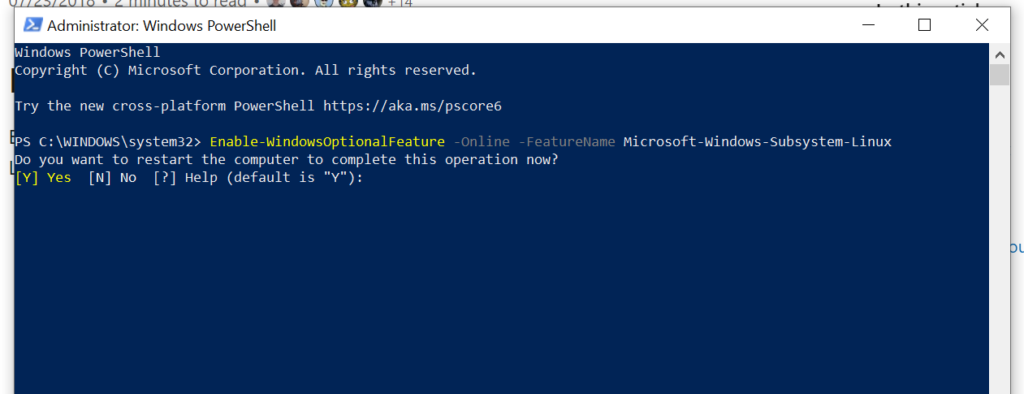
First thing first, install WSL. Open up Powershell as an administrator.

Enable-WindowsOptionalFeature -Online -FeatureName Microsoft-Windows-Subsystem-Linux

Restart Windows.

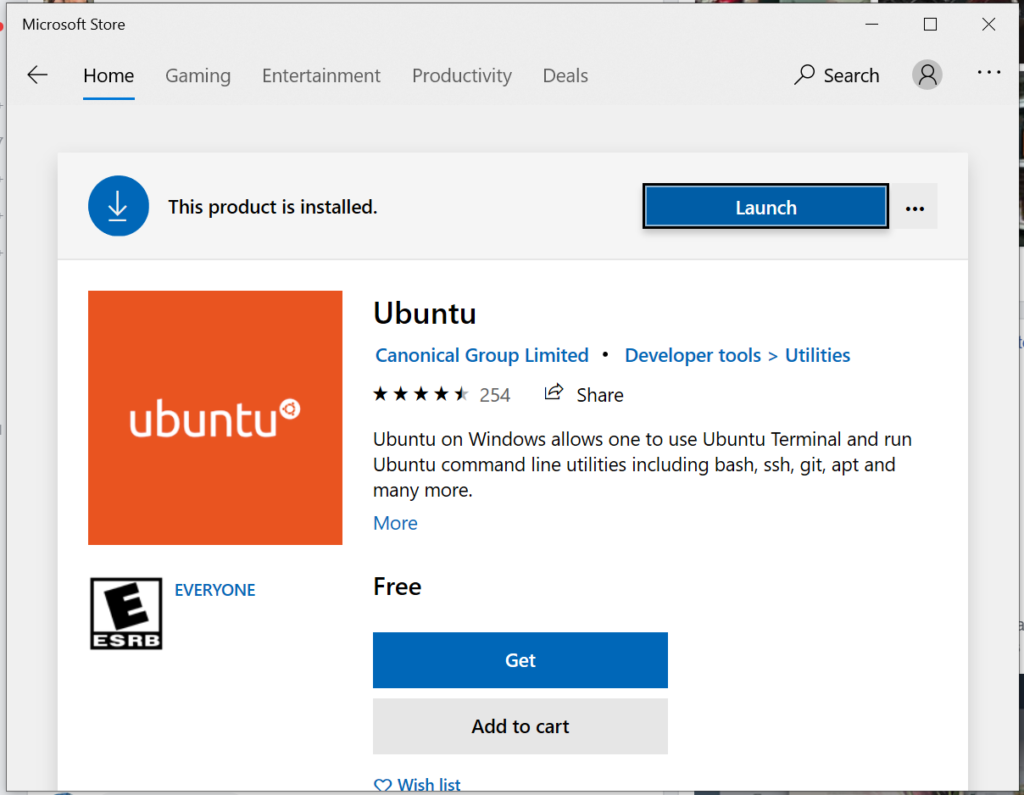
After restarting go to Microsoft Store and search for “Linux”, select “Run Linux on Windows”. Pick Ubuntu and get it.

It would take a while for the installation process, you would be asked to provide a new username and password.

If you got to the Ubuntu shell, install the PHP repository

   sudo add-apt-repository ppa:ondrej/php 

Make sure we are getting all the recently updated software to be installed.

sudo apt-get update

Here are all the necessary libraries that we need.

sudo apt-get install curl php7.4 php7.4-curl php7.4-cli php7.4-mbstring php7.4-xml git unzip 

Install terminus

cd ~

mkdir terminus3

cd terminus3

curl -L https://github.com/pantheon-systems/terminus/releases/download/`curl --silent "https://api.github.com/repos/pantheon-systems/terminus/releases/latest" | perl -nle'print $& while m#"tag_name": "\K[^"]*#g'`/terminus.phar --output terminus

chmod +x terminus

sudo ln -s ~/terminus3/terminus /usr/local/bin/terminus

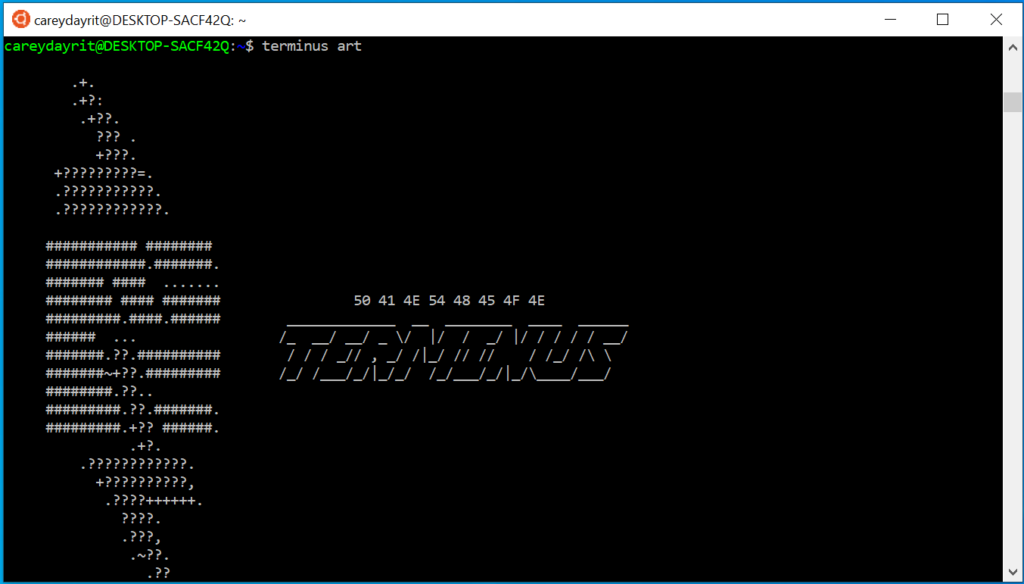
That’s it enjoy Terminus on Windows.

Installing Terminus on MacOS (Mojave)

This installation process needs to have Homebrew please do install it before doing the following steps. Homebrew installs the stuff you need that Apple did not.

Requirements:

  • Homebrew
  • PHP v7.3
    • php-cli
    • php-curl
    • php-mbstring
    • php-xml
  • Composer

Installation process

We need Homebrew to install the needed programs and libraries

/usr/bin/ruby -e "$(curl -fsSL https://raw.githubusercontent.com/Homebrew/install/master/install)"

After successfully installing Homebrew, it’s time to use ‘brew’ to install PHP

brew install php@7.3

Let’s try to download Composer, using the terminal.

curl -sS https://getcomposer.org/installer -o composer-setup.php
php composer-setup.php --filename=composer
sudo mv composer /usr/local/bin/composer

Then we can easily install Pantheon’s CLI tool, Terminus

composer require pantheon-systems/terminus
sudo ln -s /home/username/vendor/pantheon-systems/terminus/bin/terminus  /usr/local/bin/terminus

you need to replace /home/username with the actual username of the machine.

Then let’s try to authenticate.

terminus auth:login --machine-token=‹machine-token›

That’s it, happy coding.

Installing Terminus on Ubuntu 18.04.4

The Terminus command-line tool of Pantheon.io can easily be installed on Ubuntu 18.04.4 (Bionic Beaver).

Install the dependencies and requirements, since Terminus is written in PHP scripting language, the minimum version requirement 5.6 running it on PHP v7.3 is much faster.

The PHP extensions needed are:

  • curl
  • cli
  • mbstring
  • xml

PHP v7.3

sudo -A add-apt-repository ppa:ondrej/php -y;
sudo apt-get update

Dependencies and Requirements

sudo apt-get install curl php7.3 php7.3-curl php7.3-cli php7.3-mbstring php7.3-xml git unzip -y

Composer (skip if the machine in use has a prior composer installed.)

curl -sS https://getcomposer.org/installer -o composer-setup.php
php composer-setup.php --filename=composer
sudo mv composer /usr/local/bin/composer

Install Terminus via Composer

composer require pantheon-systems/terminus

Then in order that terminus can be executed on all folders, create a symlink that can be accessed.

sudo ln -s /home/vagrant/vendor/pantheon-systems/terminus/bin/terminus  /usr/local/bin/terminus

Test that it is properly installed

terminus -v

Authenticate

terminus auth:login --machine-token=‹machine-token›